


























Quick view
- Home Office Setup: Desk, Shelves, and Organization Tips for Productive Work
- Choosing the Right Desk
- Wall Shelving for Your Office
- Cable Management: The Hidden Productivity Killer
- Ergonomics: Setting Up Your Body for Long Work Days
- Lighting Your Home Office
- Layout Strategies for Different Spaces
- Organization Systems That Stick
- Frequently Asked Questions
- Build Your Workspace, Not Just a Desk
Shop this guide
Handcrafted Desk, made to order in solid wood.
 Christmas edit
Live Edge L-Shaped Desk – Handmade Solid Wood Corner Desk for Home Office
From $2,340.0010% off at checkout
Christmas edit
Live Edge L-Shaped Desk – Handmade Solid Wood Corner Desk for Home Office
From $2,340.0010% off at checkout
 Christmas edit
Sculptural Floating Live Edge Solid Wood Corner Desk & Wall-Mounted Workspace Slab
From $896.00
Christmas edit
Sculptural Floating Live Edge Solid Wood Corner Desk & Wall-Mounted Workspace Slab
From $896.00
 Rustic Floating Shelf Desk – Wall Mounted Study Room Workspace
From $250.00
Rustic Floating Shelf Desk – Wall Mounted Study Room Workspace
From $250.00
 Christmas edit
Handmade Live Edge Desk – Rustic Solid Wood Office Workstation for Home or Studio
From $2,860.0010% off at checkout
Christmas edit
Handmade Live Edge Desk – Rustic Solid Wood Office Workstation for Home or Studio
From $2,860.0010% off at checkout
 Christmas edit
Rustic Live Edge Wooden Desk for Home Office – Natural Wood Desk
From $1,440.00
Christmas edit
Rustic Live Edge Wooden Desk for Home Office – Natural Wood Desk
From $1,440.00
 Christmas edit
Computer Desk Ulm – Unique Mid Century Narrow Writing Desk, Solid Oak Minimalist Scandinavian Furniture
From $1,400.00
Christmas edit
Computer Desk Ulm – Unique Mid Century Narrow Writing Desk, Solid Oak Minimalist Scandinavian Furniture
From $1,400.00
Home Office Setup: Desk, Shelves, and Organization Tips for Productive Work
Working from home started as a pandemic necessity and became a permanent reality. By 2026, over 30% of U.S. knowledge workers operate partially or fully remote. But while the work model changed, many home offices didn't. Millions of people are still working from kitchen tables, bedroom corners, and makeshift setups that haven't been updated since 2020.
A proper home office setup isn't about aesthetics (though it helps). It's about reducing friction. The right desk height prevents back pain. Organized shelving keeps files and supplies within arm's reach. Good cable management eliminates visual clutter that drains focus. When your workspace works, your work works.
This guide covers desk selection, wall shelving systems, cable management, ergonomic fundamentals, and layout strategies that make a home office feel professional without requiring a dedicated room.
Choosing the Right Desk
The desk is the anchor of any home office. Get this wrong and everything else - monitor position, keyboard height, paper management - cascades into problems.
Desk types and when each works:
- Floating desk (wall-mounted). The best option for small rooms and shared spaces. A floating desk mounts directly to the wall, eliminating legs and freeing floor space underneath. Your chair tucks away completely when not in use, making the desk disappear visually. Ideal for bedrooms, hallways, and studio apartments where the office shares space with other functions.
- Standing desk (adjustable). Lets you alternate between sitting and standing throughout the day. Good for people who experience back or hip pain from prolonged sitting. Manual crank models are cheaper and more reliable; electric models are more convenient. Requires significant floor space.
- Traditional writing desk. Four legs, a flat surface, maybe a drawer or two. Simple, stable, and familiar. Works well when you have a dedicated office room and don't need the space-saving benefits of wall mounting.
- L-shaped desk. Provides a large work surface for multi-monitor setups or people who spread out (designers, architects, paperwork-heavy jobs). Takes up a corner, which is often the most efficient use of room geometry.
- Secretary desk or fold-out desk. Closes to hide your entire work surface behind a panel. Excellent for living rooms where you want the office to vanish at the end of the workday. Limited surface area when open.
Sizing guidelines:
- Width: 48-60 inches for a single monitor and keyboard. 60-72 inches for dual monitors.
- Depth: 24-30 inches. Enough to place a monitor 20-26 inches from your eyes.
- Height: 28-30 inches for a standard seated desk. Your elbows should bend at approximately 90 degrees when typing, with your forearms parallel to the floor.


Wall Shelving for Your Office
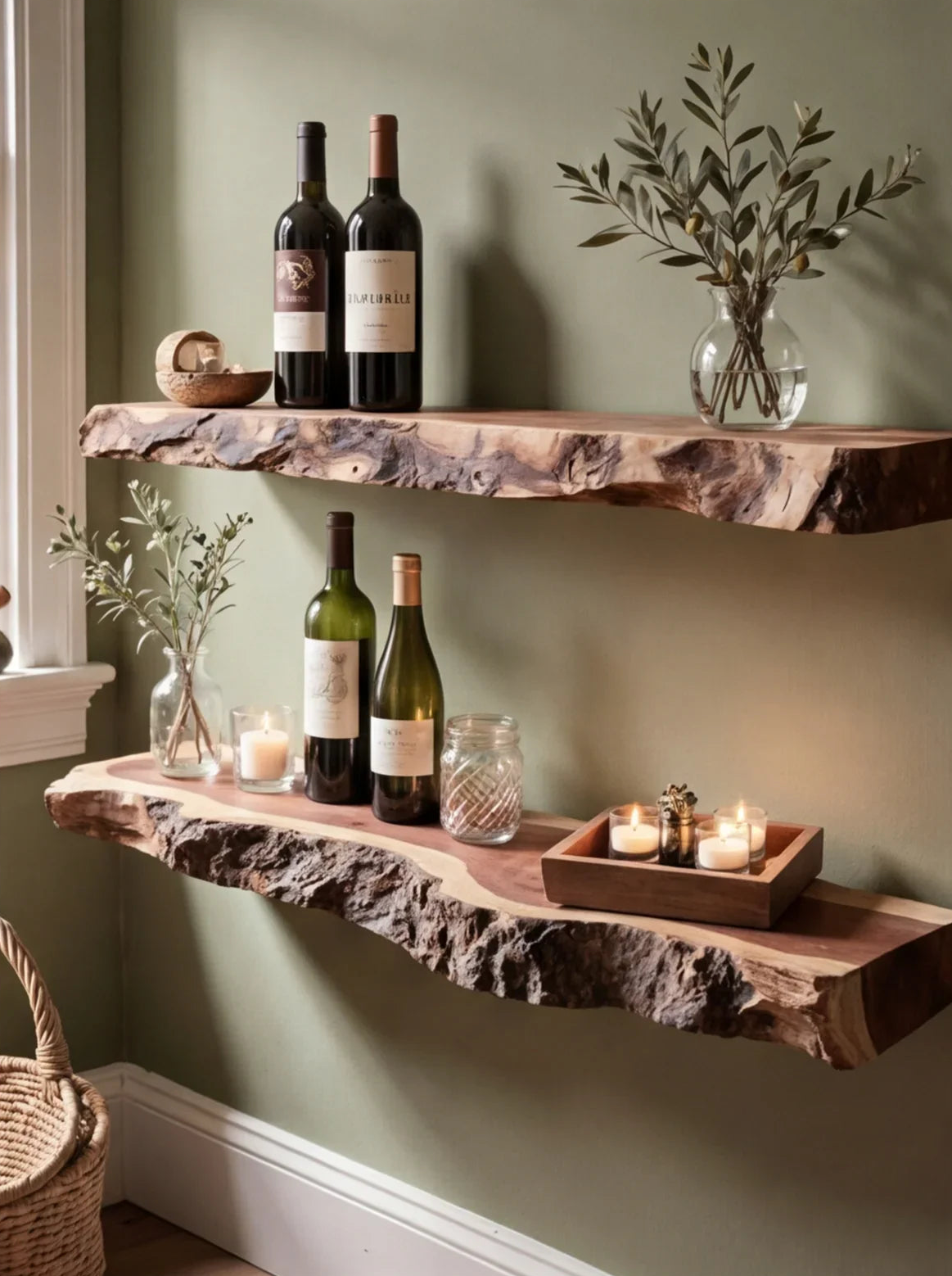
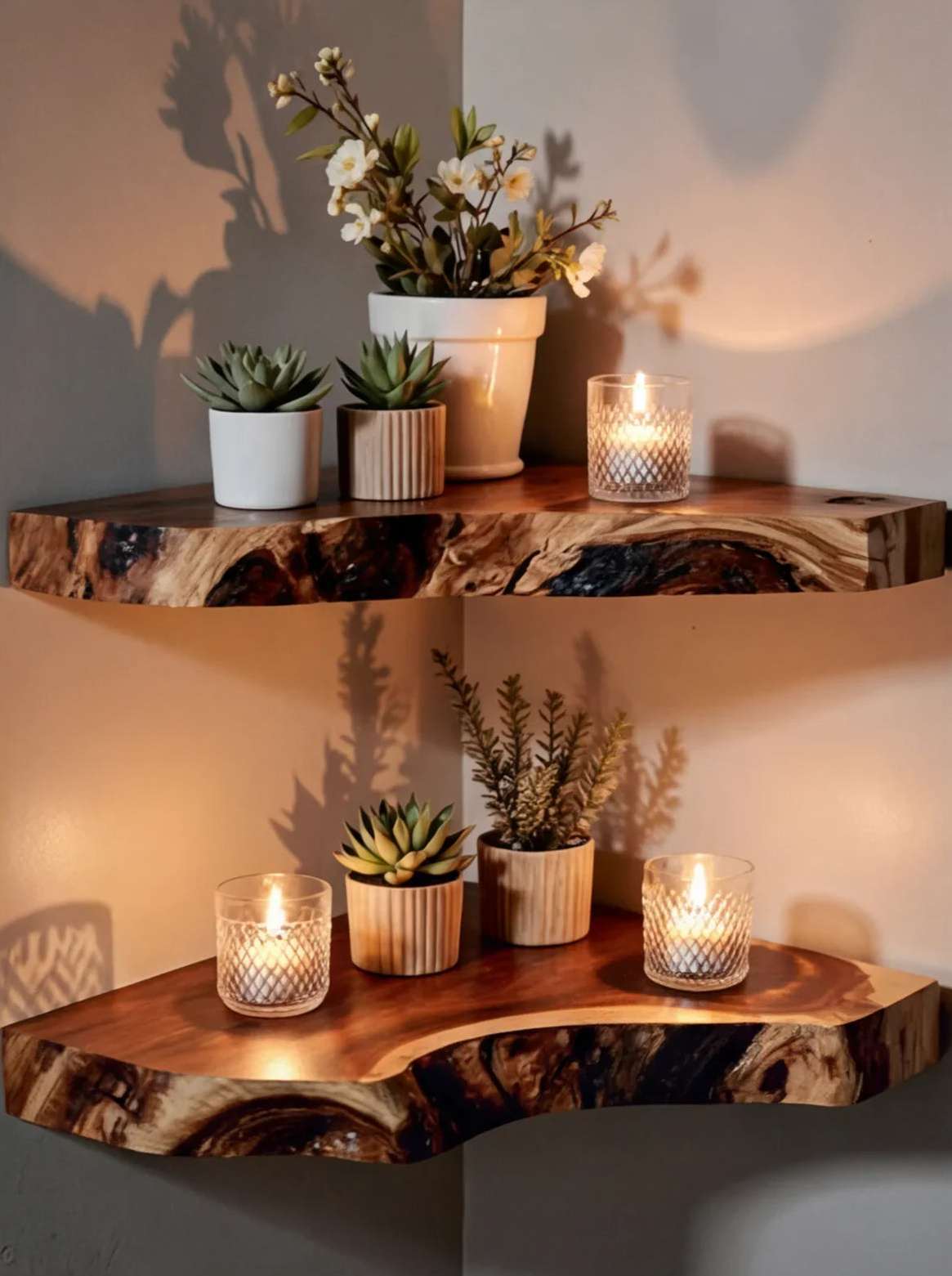
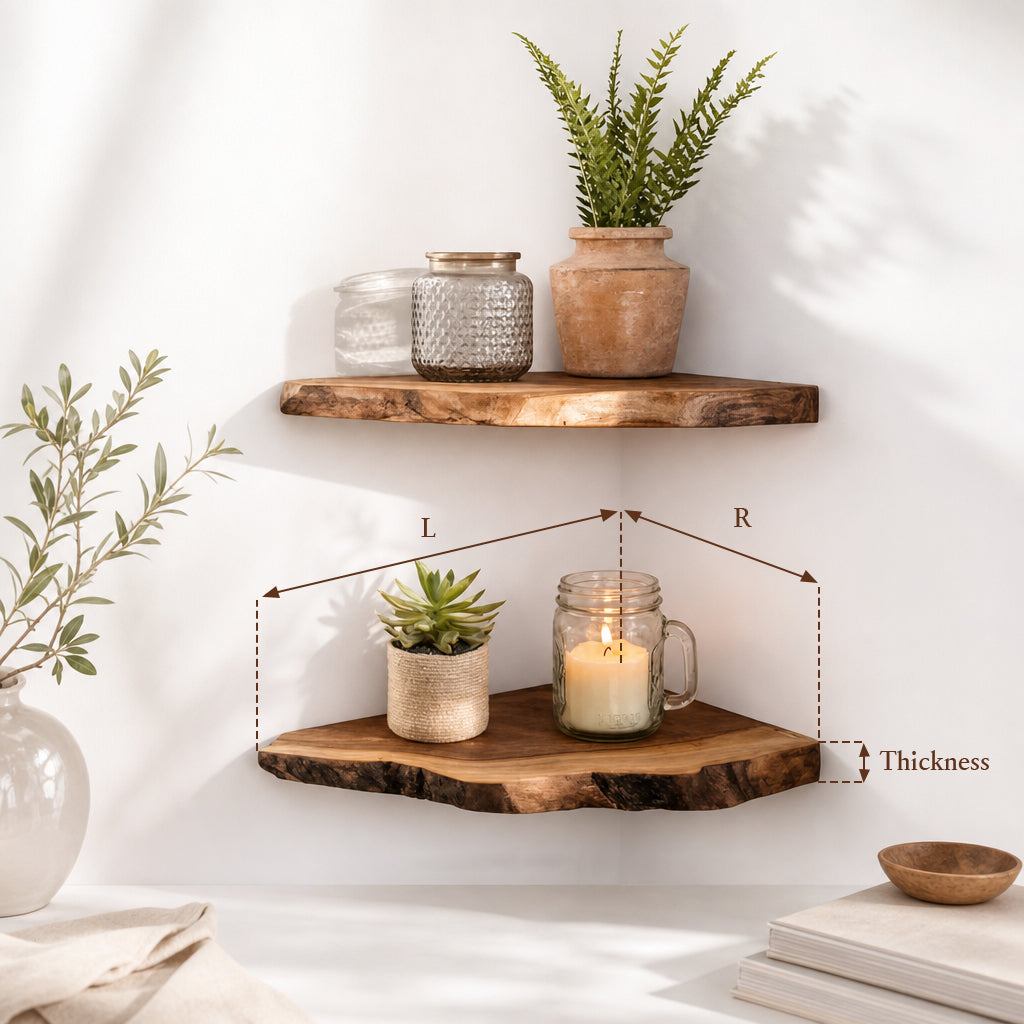
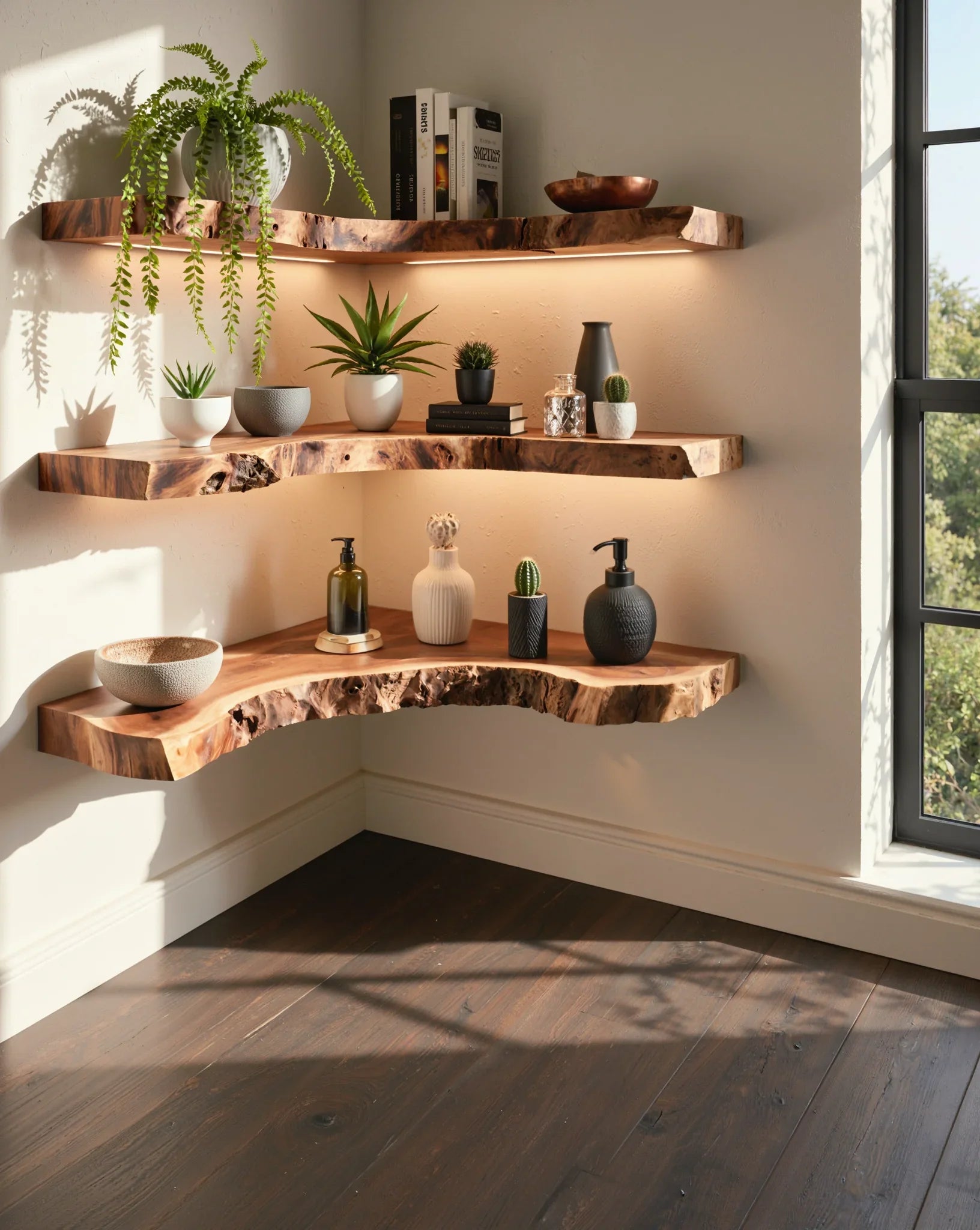
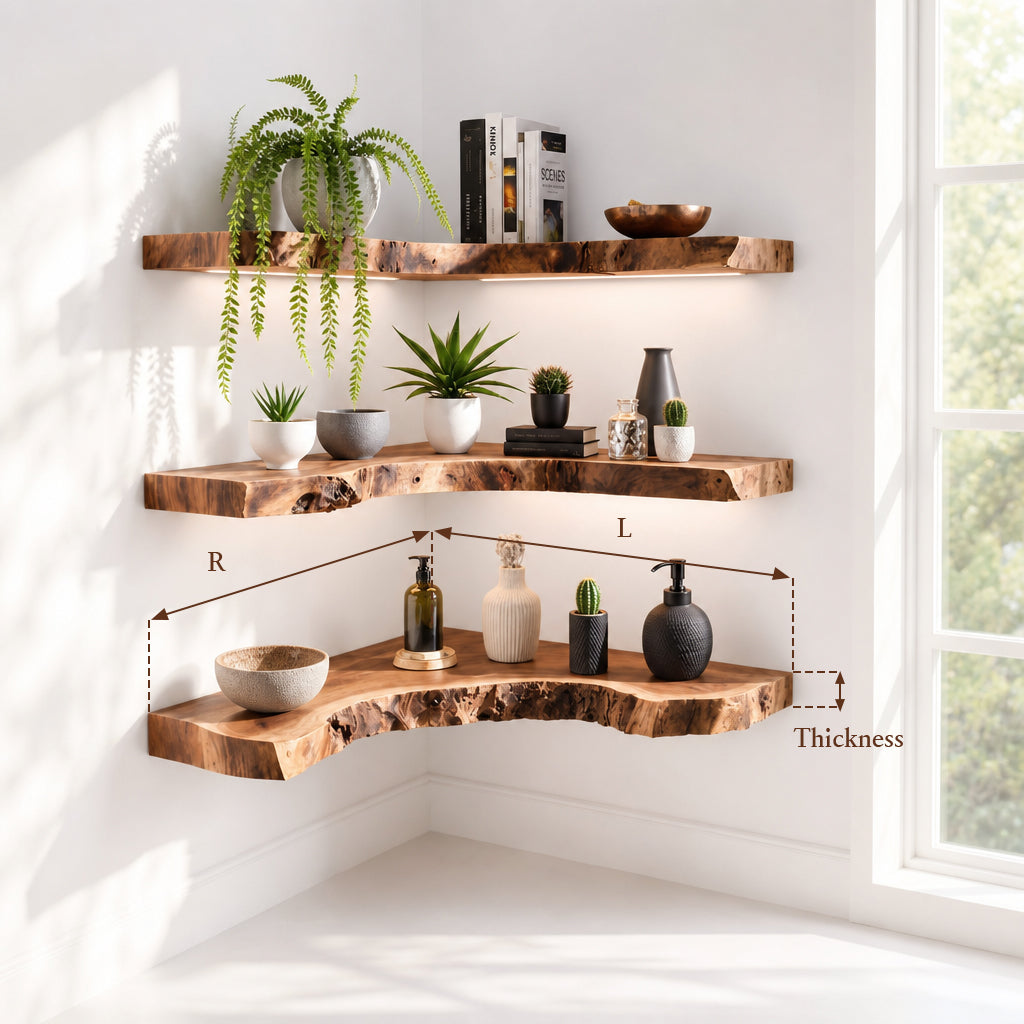
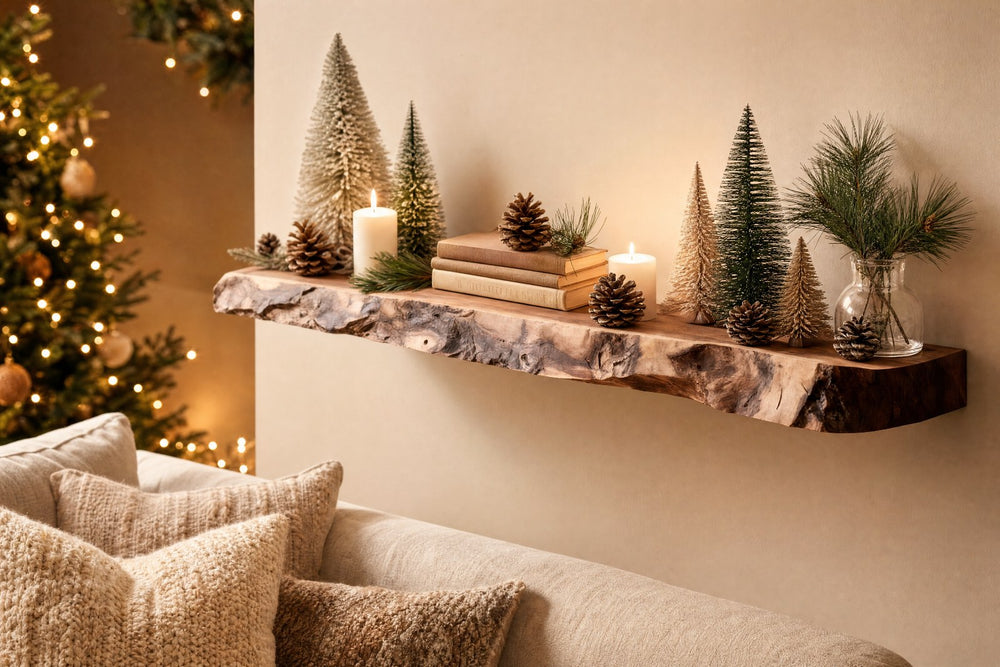
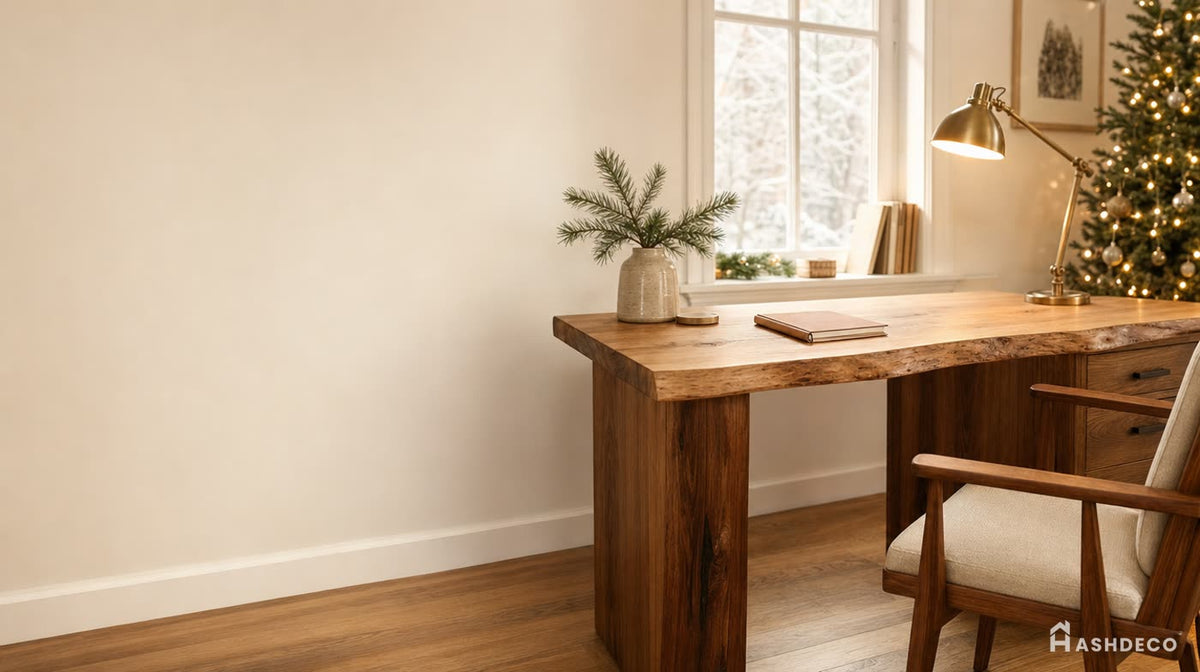
Desk surface area is precious. Everything that doesn't need to be on your desk should be on the wall - within arm's reach but off the work surface. This is where floating shelves earn their keep in a home office.
What to put on office wall shelves:
- Reference books and binders. Frequently accessed materials should be at arm's reach. Infrequently used archives go in a closet or file cabinet.
- Office supplies. Pen cups, tape dispensers, notepads, sticky notes - in small containers or trays on a shelf beside or above the desk.
- Plants. A small pothos, snake plant, or succulent on a shelf above the monitor adds life to the workspace without cluttering the desk. Studies consistently show that plants in workspaces reduce stress and improve concentration.
- Personal items. A photo, a small figurine, a favorite mug. One or two personal items make the office feel like yours. More than that becomes distraction territory.
- Printer or scanner. If wall shelving is sturdy enough (solid wood, stud-mounted), a small printer sits above desk level and frees significant surface area below.
Shelf placement for office use:
- Mount the first shelf 6-10 inches above your monitor. This keeps supplies visible but out of your direct sightline while working.
- Stack additional shelves 12-14 inches apart above the first.
- Keep the most-used items on the lowest shelf (easiest to reach from a seated position) and least-used items highest.
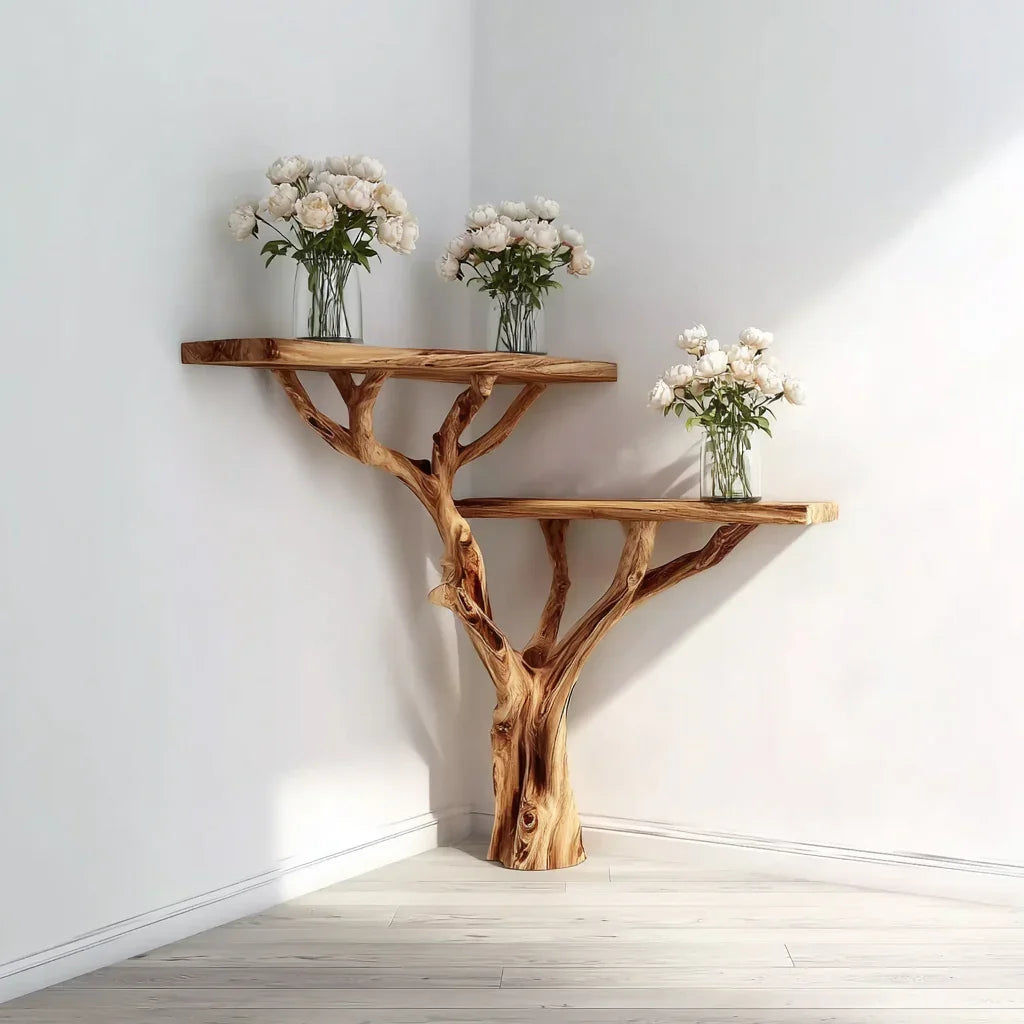
For book-heavy home offices, a tree bookshelf combines storage capacity with a distinctive visual element - it functions as both furniture and art.

Cable Management: The Hidden Productivity Killer
The average desk setup has 4-8 cables: power for the computer, monitor, charger, mouse (if wired), keyboard (if wired), lamp, speaker, and phone charger. Left unmanaged, they tangle, fall behind the desk, and create a visual mess that subtly but persistently distracts.
Cable management solutions ranked by effort:
- Cable clips (5 minutes). Adhesive clips stick to the desk edge or underside and hold individual cables in place. Cheap, fast, effective. Start here.
- Cable tray (15 minutes). A metal or plastic tray that mounts under the desk and holds all cables off the floor. Power strips go in the tray too. Eliminates the cable waterfall behind your desk.
- Cable sleeves or wraps (10 minutes). Bundle multiple cables running the same direction into a single sleeve. Reduces visual clutter from a spaghetti tangle to one clean line.
- Velcro ties (5 minutes). Reusable ties that bundle and route cables. Better than zip ties because you can add or remove cables without cutting.
- Wireless peripherals (0 minutes, just buy them). A wireless keyboard, mouse, and headset eliminate three cables instantly. Bluetooth or USB-receiver options work well for most office tasks.
Power management:
- Use a surge protector (not just a power strip) to protect equipment from voltage spikes.
- Mount the surge protector under the desk or inside a cable tray. It shouldn't be visible from your seated position.
- Label each plug with a small tag or colored tape. When you need to unplug one device, you won't have to trace every cable.
Don't miss
These pieces qualify for 10% off orders over $2,000. Applied automatically at checkout.
10% off
Live Edge L-Shaped Desk – Handmade Solid Wood Corner Desk for Home Office
From $2,340.00
10% off at checkout
10% off
Handmade Live Edge Desk – Rustic Solid Wood Office Workstation for Home or Studio
From $2,860.00
10% off at checkout
 10% off
Sculptural Organic Solid Wood Vanity Desk – Modern Japandi Makeup & Writing Table
From $2,576.00
10% off at checkout
10% off
Sculptural Organic Solid Wood Vanity Desk – Modern Japandi Makeup & Writing Table
From $2,576.00
10% off at checkout
 10% off
Modern Live Edge L Shaped Desk For Study Room
From $2,340.00
10% off at checkout
10% off
Modern Live Edge L Shaped Desk For Study Room
From $2,340.00
10% off at checkout
Ergonomics: Setting Up Your Body for Long Work Days
Ergonomics isn't about expensive chairs and fancy equipment. It's about positioning your body to avoid strain during prolonged sitting.
The fundamentals:
- Monitor height. The top of your screen should be at or slightly below eye level. If your monitor is too low, you look down all day, straining your neck. A monitor arm or a stack of books as a riser fixes this.
- Monitor distance. 20-26 inches from your eyes. An arm's length is a good starting point. If you squint, move it closer. If you feel eye strain, move it further.
- Keyboard and mouse height. Elbows bent at 90 degrees, forearms parallel to the floor, wrists neutral (not angled up or down). If your desk is too high, raise your chair and add a footrest. If it's too low, add risers under the desk legs or use a keyboard tray.
- Chair height. Feet flat on the floor, thighs parallel to the ground, knees at 90 degrees. If your feet don't reach the floor at the right desk height, use a footrest.
- Back support. Your lower back (lumbar curve) should be supported. If your chair lacks lumbar support, a small cushion or rolled towel in the lower back works.
- Screen glare. Position your desk so windows are to the side, not directly behind or in front of you. A window behind the monitor creates glare; a window behind you reflects on the screen.
Movement breaks:
No ergonomic setup eliminates the need to move. Stand up, stretch, and walk for 2-5 minutes every hour. Set a timer if you tend to lose track. A standing desk lets you alternate positions, but standing all day is just as problematic as sitting all day - the goal is variation.
Lighting Your Home Office
Bad lighting causes eye strain, headaches, and fatigue. Most home offices are either too dim (a single ceiling light) or too harsh (direct overhead fluorescent).
Layered lighting approach:
- Ambient light. General room illumination from ceiling fixtures or floor lamps. Provides even, low-intensity light that prevents dark corners.
- Task light. A desk lamp aimed at your keyboard/document area. LED desk lamps with adjustable brightness and color temperature are ideal. Set to cool white (4000-5000K) during work hours for alertness; warm white (2700-3000K) for evening work to reduce eye strain.
- Monitor backlight. A bias light (LED strip behind the monitor) reduces the contrast between the bright screen and dark wall behind it. This contrast reduction measurably decreases eye fatigue during long screen sessions.
Natural light:
Position your desk perpendicular to the window - light comes from the side rather than creating glare from in front of or behind the screen. If you can't avoid facing a window, use a sheer curtain or adjustable blinds to diffuse direct sunlight.

Layout Strategies for Different Spaces
Dedicated office room
You have the most flexibility here. Position the desk facing the door (reduces the subconscious distraction of not seeing who's coming). Place bookshelves or floating shelves on the wall beside or behind you for easy access. Keep the space behind you clean and simple if you take video calls - it's your virtual background in real life.
Bedroom office
The challenge: separating work from rest. A floating desk on the wall opposite the bed creates physical distance. Use a room divider, curtain, or bookshelf as a visual separator if the room is large enough. At the end of the workday, close the laptop and walk away - the act of leaving the "desk zone" helps your brain transition.
Living room office
A floating desk in a corner or a secretary desk that closes keeps the office from dominating the room. Wall-mounted shelves above the desk hold supplies without adding floor furniture. Choose desk and shelf materials that match the living room's existing aesthetic so the workspace blends in.
Closet office (cloffice)
Remove the closet door (or replace with a curtain), mount a floating desk at the right height, add a small shelf above, and install a LED light strip for task lighting. When work is done, close the curtain and the office disappears. This works surprisingly well in reach-in closets that are at least 24 inches deep and 48 inches wide.
Organization Systems That Stick
Organization systems only work if they're easy to maintain. Complex systems get abandoned within weeks. Keep it simple:
- Inbox tray. One tray or basket on the shelf for incoming papers, mail, and notes. Process it daily - file, act on, or toss each item.
- Desktop rule of three. Maximum three items on the desk surface: computer, one active document/notebook, and one personal item (coffee mug, plant). Everything else lives on shelves, in drawers, or in desk organizers.
- Weekly reset. Every Friday, spend 10 minutes clearing the desk, filing papers, emptying the inbox tray, and wiping surfaces. Start Monday with a clean workspace.
- Digital-first filing. Scan documents and store digitally whenever possible. Physical files take up shelf space and are harder to search. Keep paper copies only for documents that require originals (legal, tax, signed contracts).
- Zone everything. Computing zone (desk surface), reference zone (shelves), supply zone (drawer or desk organizer), filing zone (file drawer or bin). When something doesn't have a designated zone, it becomes clutter.
Frequently Asked Questions
What's the minimum space needed for a home office?
A functional work area requires about 20-30 square feet - enough for a desk (or floating desk), a chair, and some wall storage. A 4×6 foot corner or a closet 24 inches deep by 48 inches wide can work. You don't need a dedicated room; you need a dedicated zone.
Is a floating desk strong enough for a dual-monitor setup?
Quality floating desks mounted into wall studs support 50-80 pounds. A typical dual-monitor setup (two monitors + laptop + keyboard + accessories) weighs 30-45 pounds. So yes - as long as the desk is properly installed. Mount into at least two studs for best results.
How do I reduce noise in a home office?
Soft furnishings absorb sound: rugs, curtains, upholstered chairs, and bookshelves full of books. A white noise machine masks household sounds. Noise-canceling headphones are the most effective solution for shared living spaces. If you're on calls frequently, a directional microphone reduces ambient noise that others hear.
Should I invest in an expensive office chair?
If you sit for 6+ hours daily, yes. A good ergonomic chair ($300-$700) with adjustable lumbar support, seat height, and armrests prevents back pain and improves focus. Cheaper chairs often lack adjustability and wear out in 1-2 years. Consider it a health investment - cheaper than physical therapy for chronic back issues.
How do I keep a home office organized with kids in the house?
Closed storage. Drawers, cabinets, and bins with lids keep small hands out of supplies. Mount shelves above child-reach height (above 48 inches). Use a desk with lockable drawers for important documents. A visual barrier (curtain, bookshelf, or closed door) signals "office time" boundaries to children old enough to understand.
What's the best desk material for a home office?
Solid wood tops are durable, attractive, and repairable. They resist scratches better than laminate and develop character with age rather than deteriorating. Lighter wood species (ash, maple, birch) keep the office feeling open and bright. Darker species (walnut, mahogany) feel warmer but can make small spaces feel smaller.
Build Your Workspace, Not Just a Desk
A home office isn't a desk with a laptop on it. It's a system - desk, shelving, lighting, cable management, and organization working together to support how you actually work. Start with the desk position and size, add wall shelving for everything that doesn't belong on the desk surface, manage your cables, and set up lighting that protects your eyes.
For the foundation of your workspace, explore Ashdeco's floating desks, floating shelves, and tree bookshelves. Each piece is handcrafted from solid wood by Vietnamese artisans - built for daily use, designed for the long term, and made to turn a corner of your home into a workspace you actually enjoy sitting in.